To perform an audit from the Qarma web, you should to go to the audit and assessment overview under the Supply chain tab
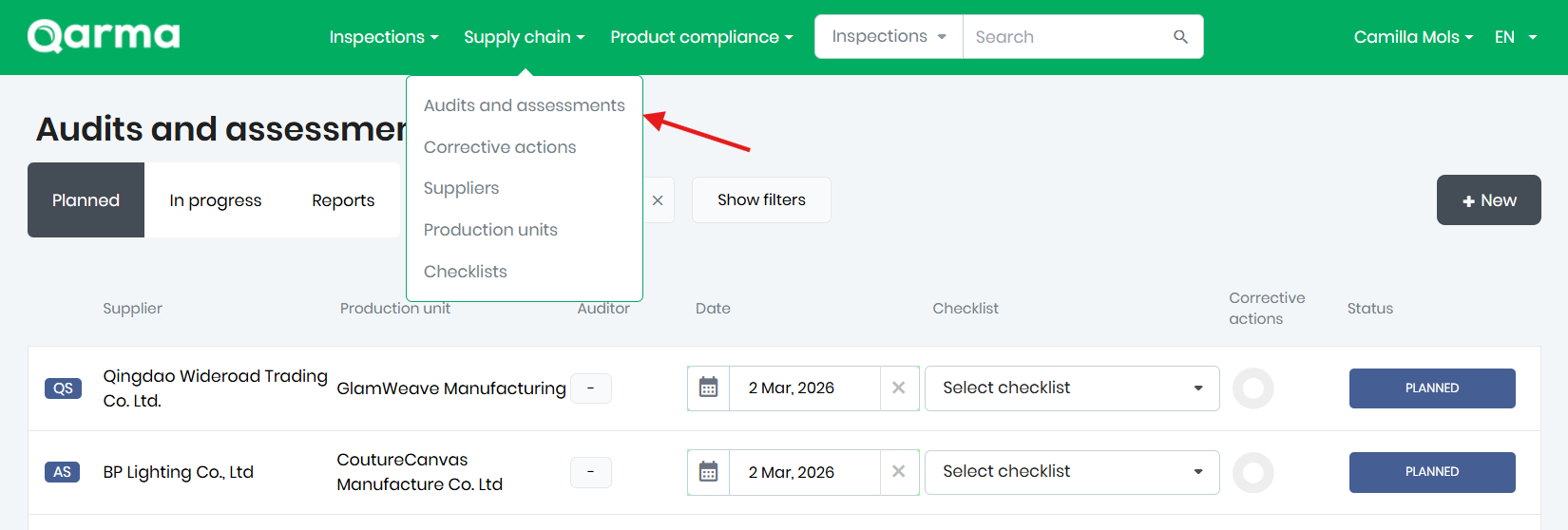
You can either start an already planned audit, by assigning yourself to it, or plan a new audit. To plan a new audit, you can follow this guide: https://support.qarmainspect.com/en/support/solutions/articles/43000628118-how-to-create-an-audit-task
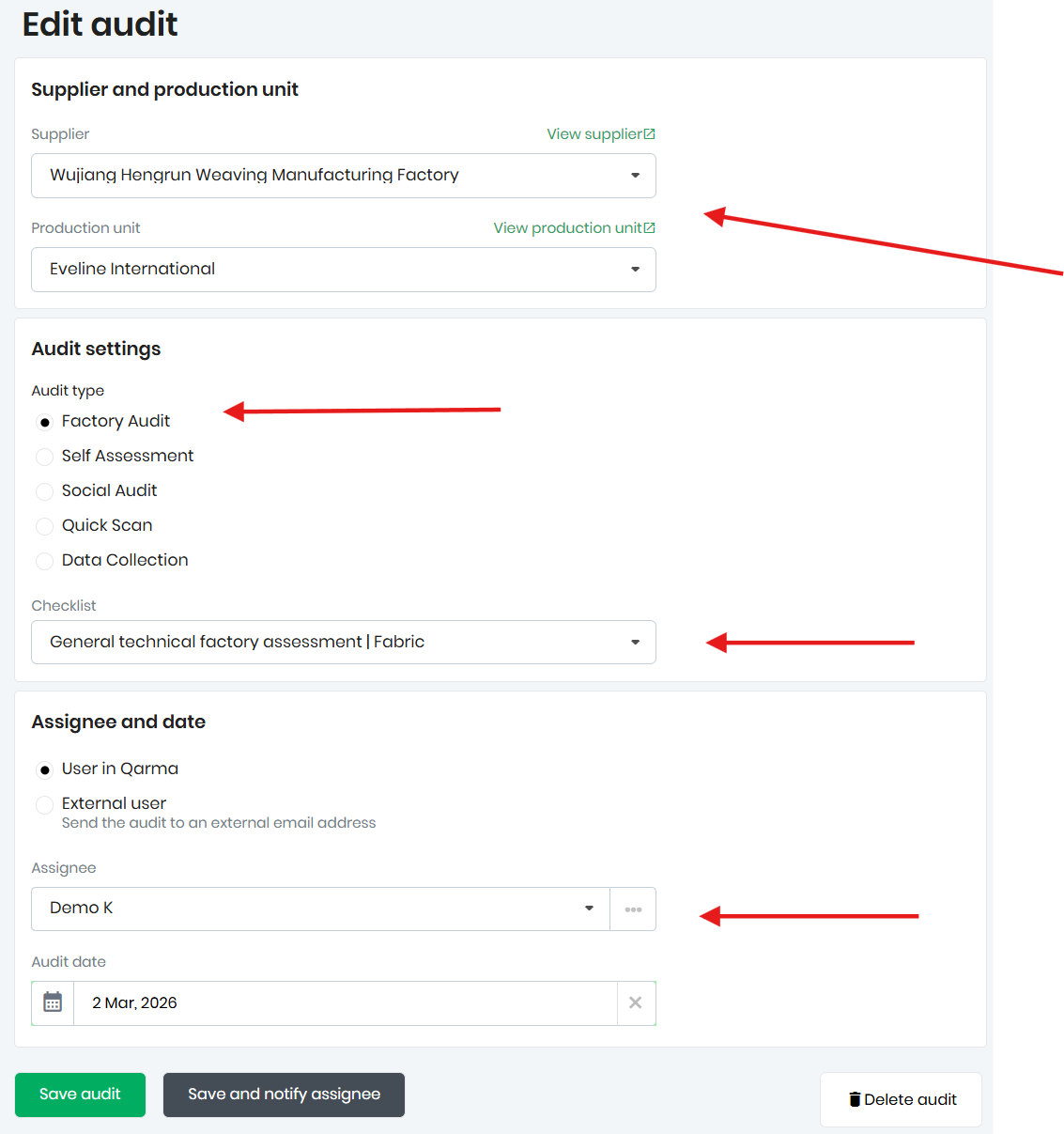
To assign yourself, you can open the audit by clicking the audit line and edit the audit details. Once the audit its assigned either to yourself or another user, you can press save audit. If the audit is assigned to yourself, you will be asked if you want to start the audit now.
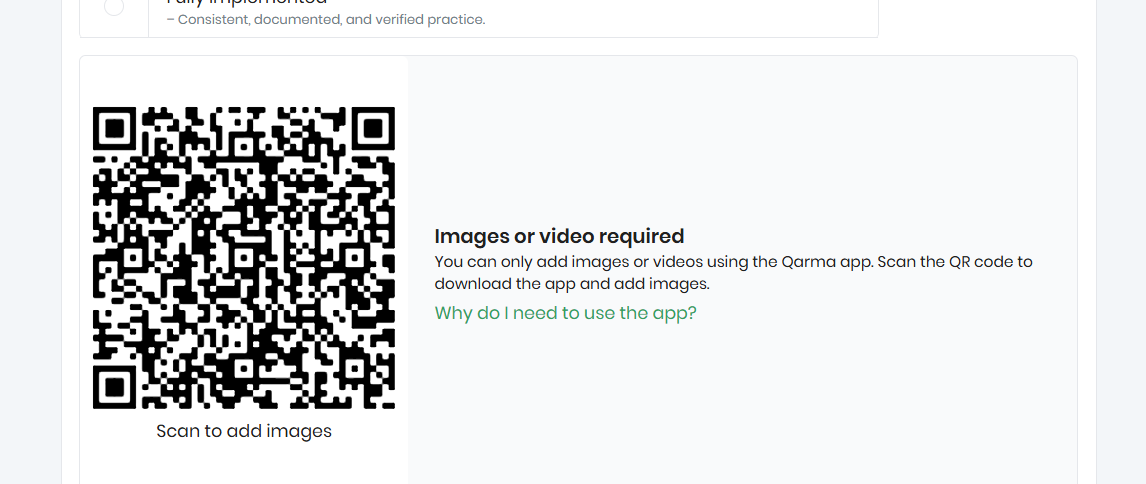
If a checkpoint has been marked with"Mandatory to take a picture" the auditor will need to use the Qarma app to take that picture. The checkpoints with mandatory pictures are clearly marked with a QR code that the auditor can scan. Scanning the QR will automatically open the checkpoint if the auditor have the Qarma app installed. The incase that the user performing the audit does not have the Qarma app installed, scanning the QR code will open a app download store and automatically find the Qarma app. Once downloaded, the user can take the pictures needed.