
Introduction
The following guide shows how to download a full-size PDF of a Qarma Dashboard page — including the complete Defect Gallery table — instead of a version that is cropped to fit the screen.
How to download the full Defect Gallery from the Dashboard
1. Open the Dashboard page you want to export (for example the Defects page with the Defect Gallery). Click the download icon in the bottom-left corner of the page, or the ••• menu in the top-right corner, and select Download.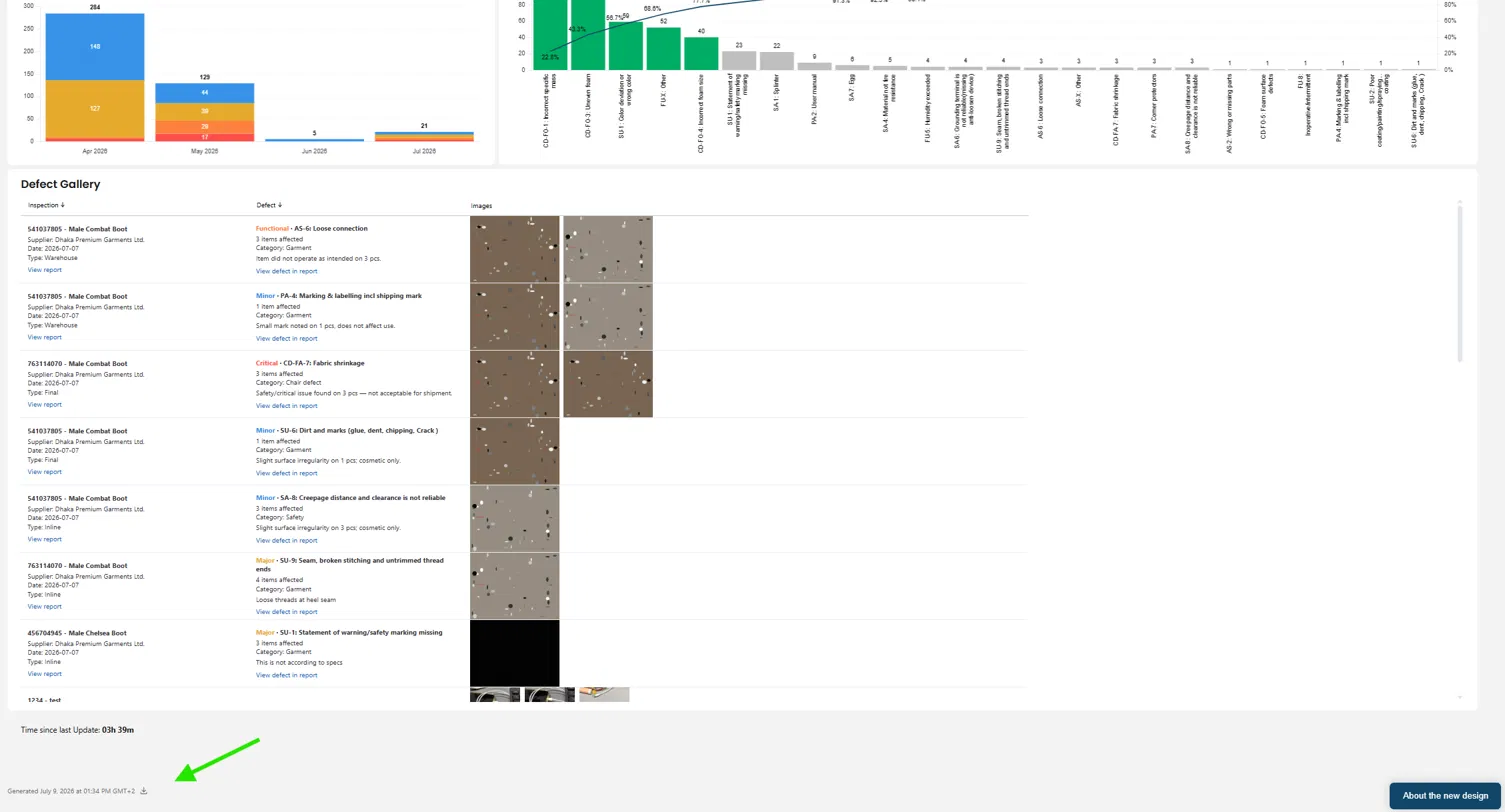
2. In the Download dialog, enter a File name and keep Format set to PDF.
3. Click the Paper size dropdown. By default this is set to Fit page to dashboard — select a distinct paper size instead, such as A3.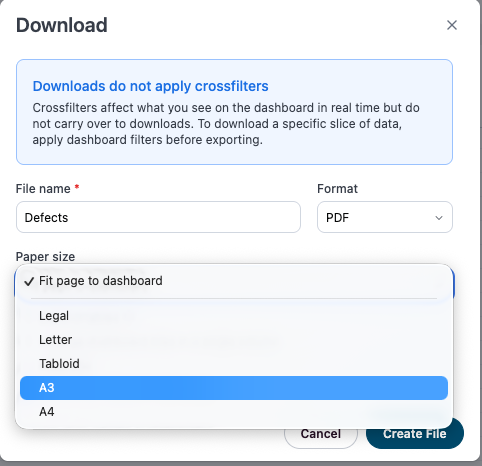
4. Once a distinct paper size is selected, tick the Expand tables checkbox. This is required to include the complete Defect Gallery — not only the rows currently visible on screen.
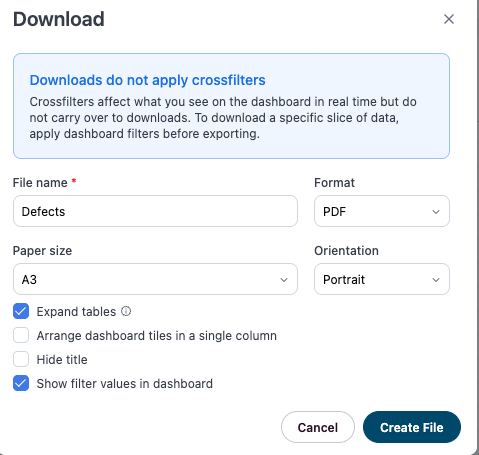
5. Set the remaining options as needed — Orientation, Hide title, Show filter values in dashboard — then click Create File to generate and download the PDF.
Notice: Why this matters
If Fit page to dashboard is left selected, the export only captures what is visible on the screen — long or scrollable tables such as the Defect Gallery will be cut off. Choosing a distinct paper size and enabling Expand tables tells the dashboard to render the entire table across as many pages as needed, so all rows are included in the download.