
Introduction
Under the EUDR, a company can submit Due Diligence Statements (DDSs) for itself, but also on behalf of other companies, as their authorized representative. Qarma supports both.
This guide explains how submitting on behalf of other operators works, how to set it up in TRACES and in Qarma, and how to choose the operator when you submit a DDS.
How it works
Qarma connects to one account in TRACES, the EU information system. This connection is set up once for your organization and is used for every DDS you submit from Qarma. The account submits in one of two roles:
- Operator – you submit DDSs only for your own company. Qarma takes the operator from your TRACES account, so you do not choose an operator in Qarma.
- Representative operator – you submit DDSs on behalf of other companies, the represented operators. They are set up in Qarma, and you choose one for each DDS.
Before you start
To submit DDSs on behalf of another company, you act as its authorized representative. For that:
- Your company must be established in the EU.
- You need a written mandate from each company you submit for. A customs mandate does not count.
- Your company must be registered in TRACES with the activity EUDR Authorised Representative. See the next section.
- Qarma submits DDSs for imports. For an import, TRACES requires an EORI number registered as an operator identifier on your TRACES account.
Note: The responsibility for compliance stays with the company you submit for, not with you as its representative. Neither TRACES nor Qarma checks your mandate, so it is your own responsibility to have it in place before you submit. For questions about your legal obligations, contact the competent authority in your country.
Setting up your account in TRACES
The TRACES operator that your account is linked to needs the activity EUDR Authorized Representative. You add it yourself in TRACES. To log in, you need an EU Login account.
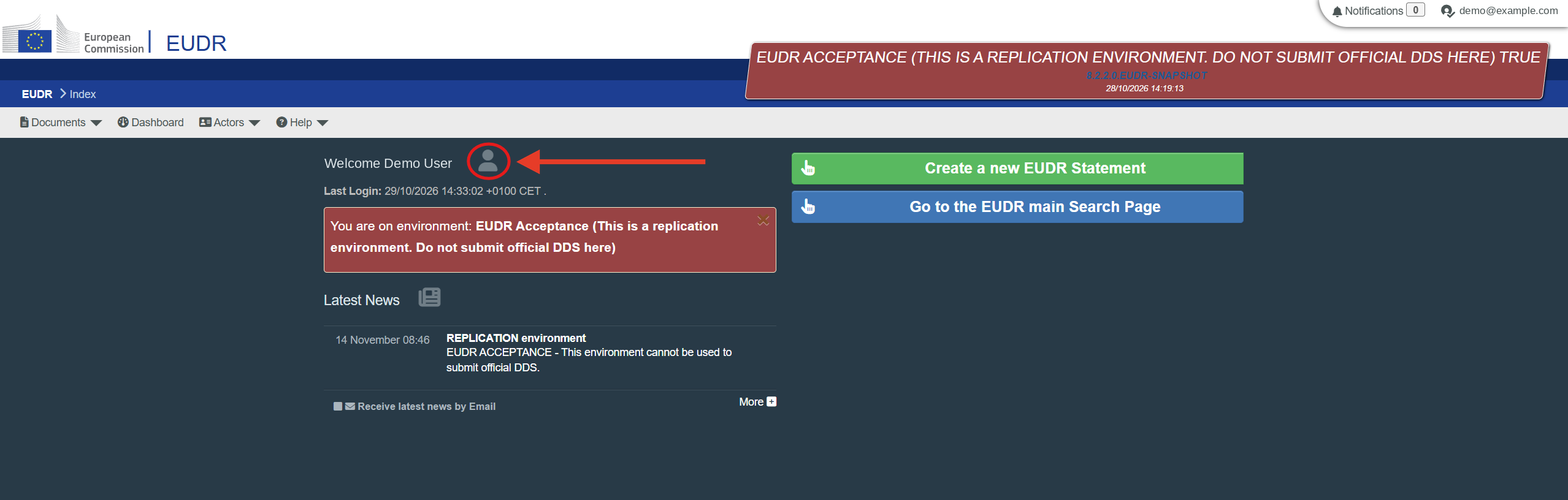
Step 1. Log in to TRACES and open your profile: click your email address in the top right corner, or the profile icon next to your name.
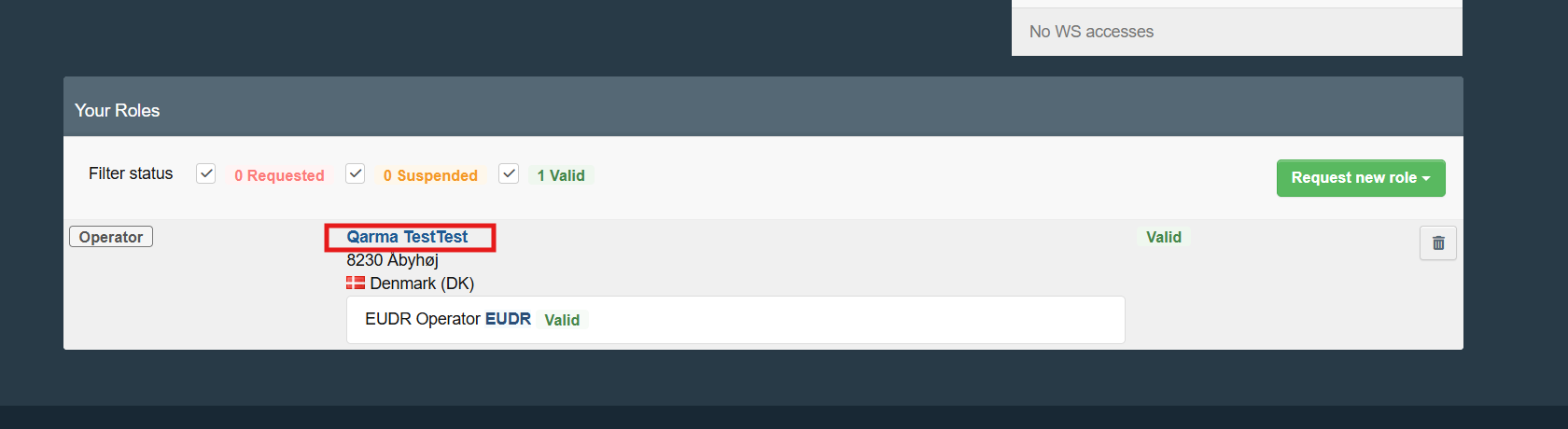
Step 2. Under Your Roles, click the name of your operator, that is, your company.
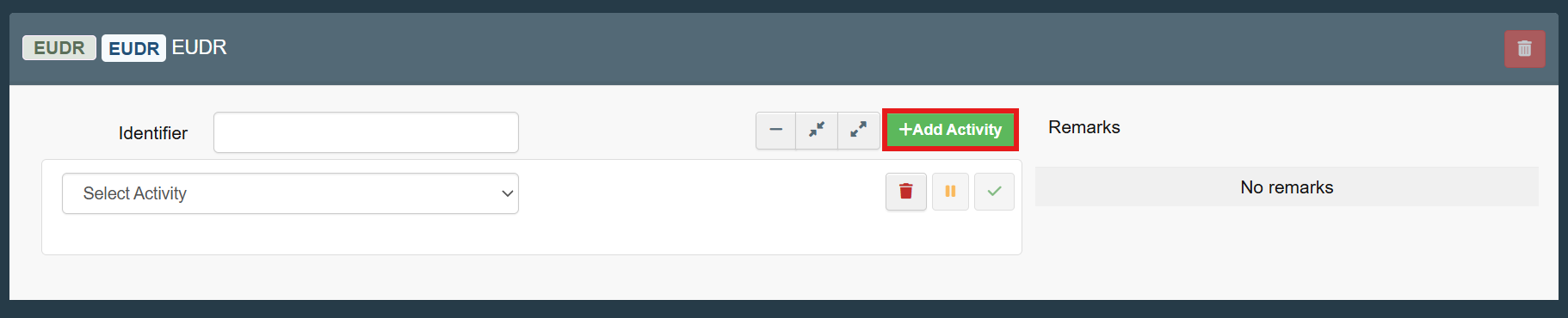
Step 3. In the EUDR section of the operator, click +Add Activity.
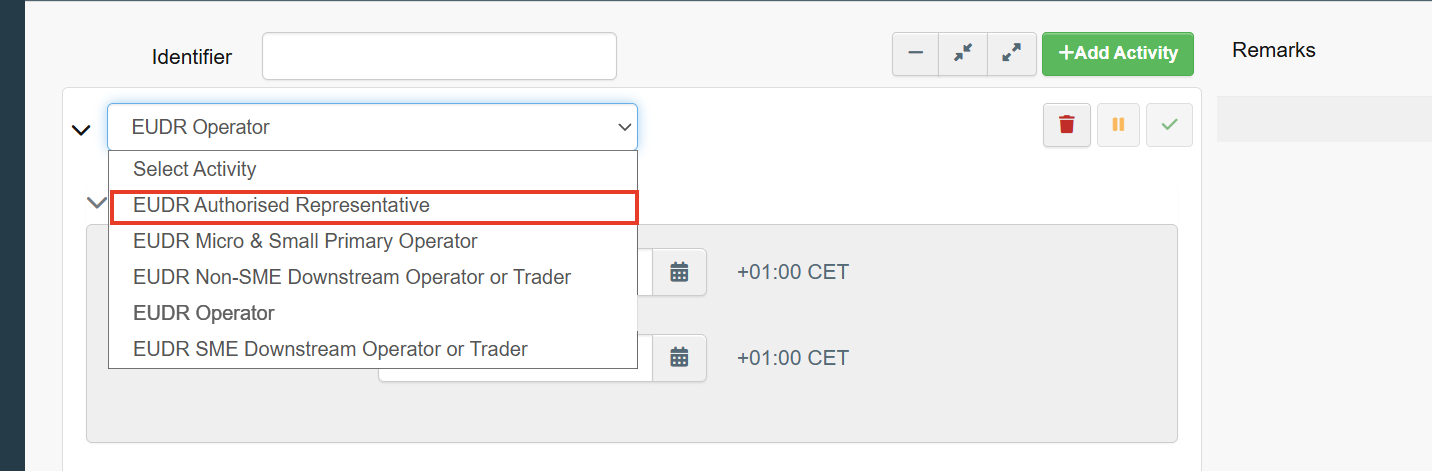
Step 4. In the activity list, choose EUDR Authorised Representative and click Save. If you also submit DDSs for your own company, keep the activity EUDR Operator as well. One operator can have both.
Afterwards, check under Your Roles that the new activity shows as Valid. TRACES validates operators established in an EU member state automatically.
- Admin rights: if you cannot add the activity, ask an ADMIN user of your company's TRACES account. The first person who requested a role for your company in TRACES was validated directly and automatically received ADMIN rights. ADMIN users can add activities and validate colleagues.
- Test and official environment: TRACES has a test environment. DDSs submitted in Acceptance have no legal value. Accounts in the two environments are not linked, so add the activity in the environment that Qarma submits to.
- Removing an activity: you cannot delete an activity yourself; only the competent authorities or the TRACES helpdesk can. An activity you do not use has no consequences.
Setting up the represented operators in Qarma
In TRACES, a DDS submitted on behalf of another company must contain that company's name, address and at least one identifier. In Qarma, these details come from the represented operators set up for your organization, so you only need to choose the operator when you submit.
The Qarma delivery team sets up the represented operators with you. For each company, we need its name and address, the type of reference number (for example EORI or VAT) and the number itself, email and phone. To add or remove a represented operator, contact support@qarmainspect.com or your contact person at Qarma.
Choosing the operator for a DDS in Qarma
With the representative role, the DDS responsible chooses the represented operator before submitting the DDS. This requires the permission Submit DDS under Product Compliance – Orders.
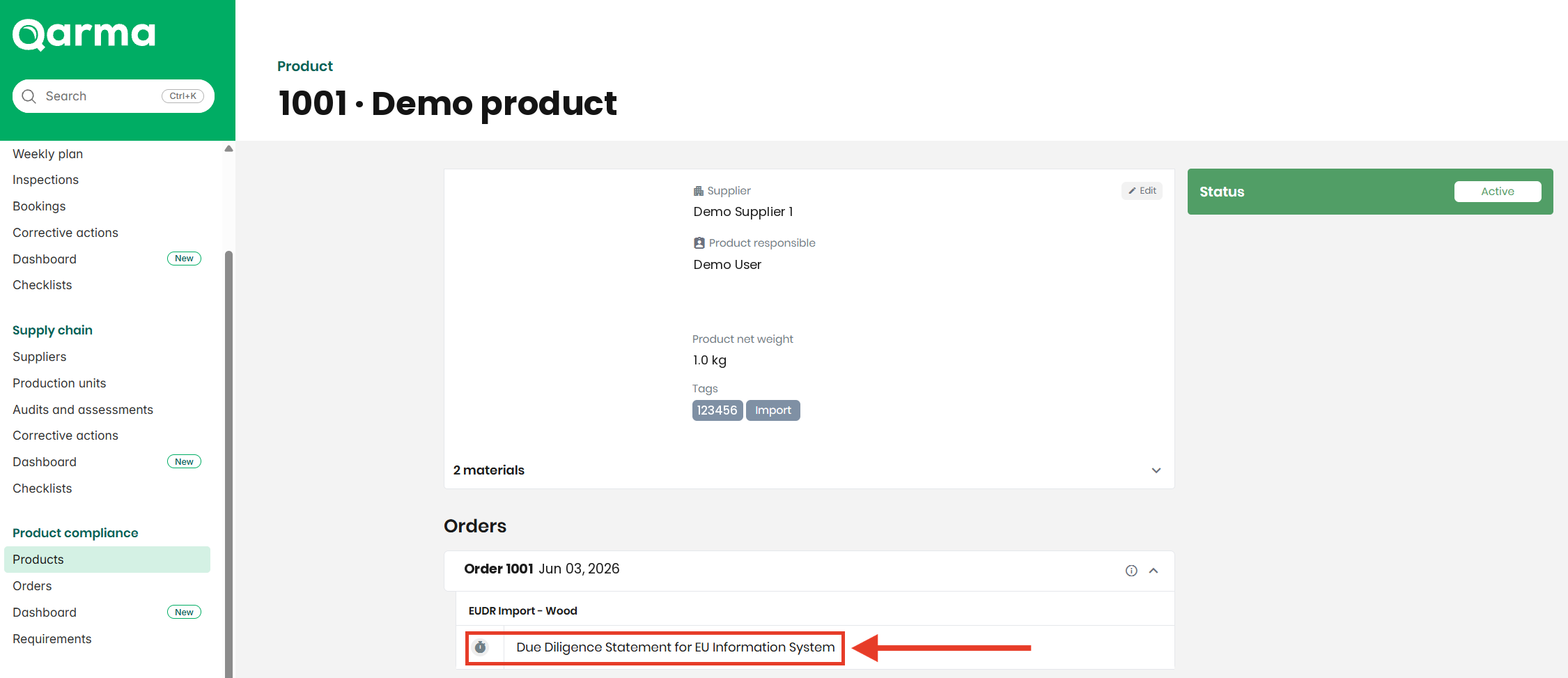
Step 1. Open the product and, under Orders, click Due Diligence Statement for EU Information System.
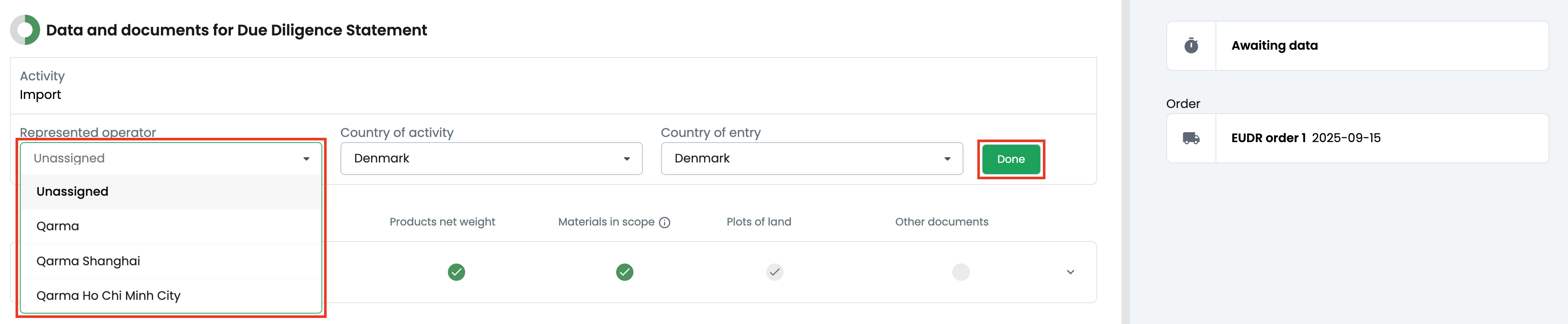
Step 2. The field Represented operator shows Missing operator as long as no operator has been chosen. Click the pencil icon on the right to change the represented operator.

Step 3. Choose the operator in the Represented operator list. In the same place, check the Country of activity and the Country of entry. Click Done.
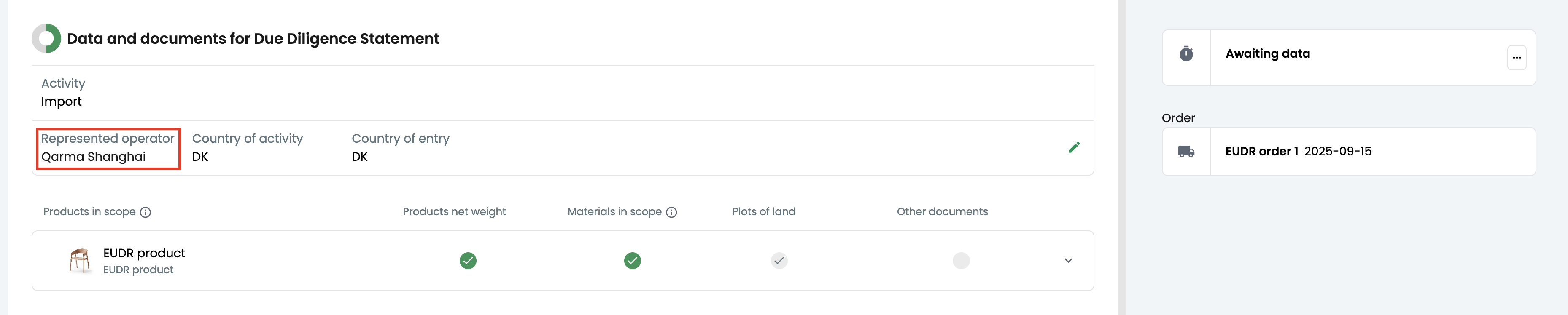
Step 4. The DDS now shows the operator you chose. To change it, click the pencil icon again.
Removing a represented operator
When a represented operator is removed from the setup, it is also removed from all order lines that have it. If the operator is added back later, it is not restored on those order lines. You need to choose it again.
Next step
For more about TRACES itself, see the official EUDR Information System User Guide.